
Meeting-Meeting and Meeting. Nowadays, we love online meeting so much. And if you are using Microsoft Teams. These 7 tips will give you better productivity and less problem when doing meeting.
Tips 1 – Be Prepared when join a Meeting
Yes, whether you host or join the meeting. Preparation is a must step.
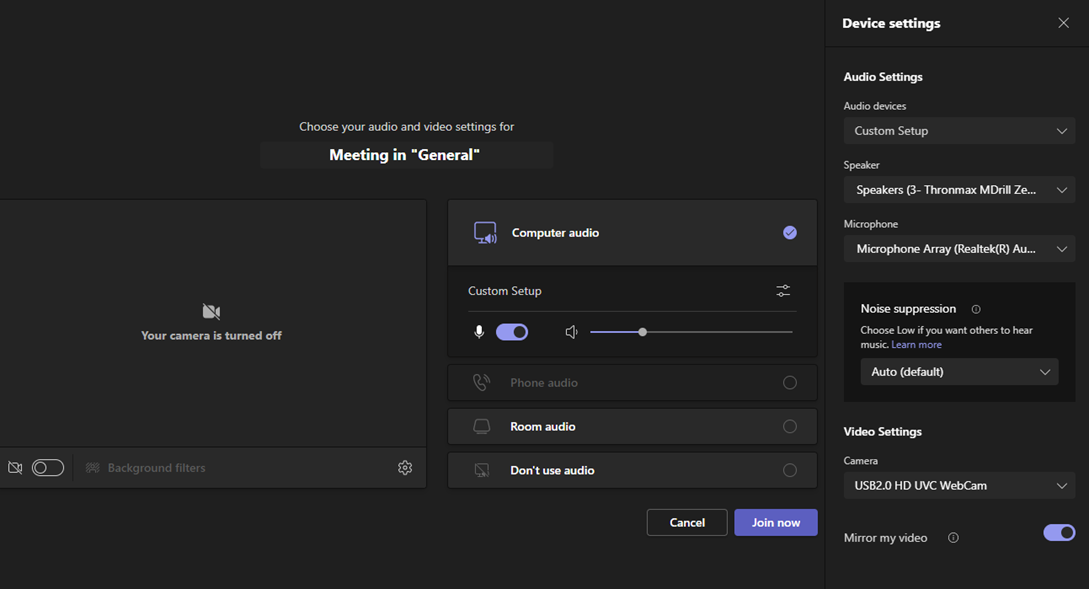
- Check your camera apply your virtual background first
- Mute the speaker icon
- Changes the configuration of your speaker and microphone. Set the best settings! For example, I always use custom setup to separate between mic and speaker.
- Set noise suppression to high, if you in noisy environment
Tips 2 – Recording Right Away, Rest after Four Hours
When the meeting starts, you can record right away. You should know that each meeting can be recorded up 4 hours. Therefore, if your meeting is more than four hours, please consider taking a break and continue later. For example, you start the meeting in 8 a.m. you can take a break in 12 p.m. The recorded session needs lot of space so you need to download right away and upload into another place such as YouTube.
Tips 3 – Lot’s of Attendees, Go to web version
There is known issue that the Teams meeting on a desktop can disconnect the meeting when your meeting has lot of attendees. If you have meeting with 500 participants. Please consider joining with web version at teams.office.com
Tips 4 – Low Bandwidth? Turn off your Video and Others
If you have low bandwidth (< 10 Mbps), we recommend you turn of your videos as well as the others. Reduce the screen resolution to 1080p or 720p when sharing a screen. Consider sharing the windows not the entire screen.
Tips 5 – Two Screen Meeting
If possible, please use two screens. The First screen is for sharing screen and the second screen for you to monitor the teams panel such as:
- Muting noisy attendee.
- Read the chat and see the raise hand.
- Add interaction such as sharing the pool on team channel
Tips 6 – Screen Annotation Make it easy.
You can download the ZoomIt – Windows Sysinternals | Microsoft Docs and try to use Ctrl + 1 to zoom and Ctrl + 2 to draw the line.
Tips 7 – Share Whiteboard
There are two whiteboards for sharing sessions.
- Use Microsoft Whiteboard for one way sharing – Get Microsoft Whiteboard – Microsoft Store
- Use InVision Freehand for two way sharing Free Online Whiteboard For Team Collaboration | InVision (invisionapp.com)
Have any other tips? Please share
Leave a Reply