
Problem
Microsoft Azure Subscription resides on a directory namely Azure Active Directory. You want to move or to consolidate the Azure Subscription into others directory. However, you find that the change directory button is disabled. You need to change the Azure Subscription to the new directory

Causes
This problem happens because of the three requirements are not fulfilled.
- You must be the Service Administrator for the subscription
- You must be signed in using a Microsoft Account / Office 365 Account
- You must have access to the directory you want to associate with
Solution
Based on the causes we can do several steps:
#1 Check your service administrator account.
- Visit https://account.windowsazure.com/Subscriptions
- Login with administrator account of the azure subscription
- Click on the subscription you want to change.
- Click on “Edit subscriptions details” and enter the Microsoft Account that is going to be Service Administrator.
- Only service administrator can migrate your subscription.
- Click Save
#2 Add the service administrator in the Azure Active Directory Destination
- Visit https://portal.azure.com/#blade/Microsoft_AAD_IAM/ActiveDirectoryMenuBlade/Overview
- Login with the owner of the Azure AD
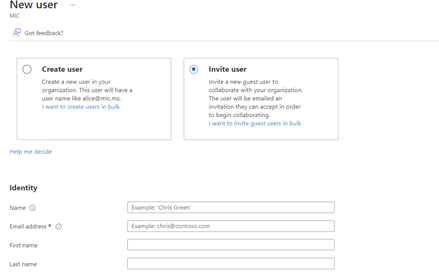
- Click on users.
- Click add users.
- Add the service administrator account by using invite the user.
- Check the email by login as service administrator.
- Click the email link to join in the directory.
#3 Change the directory of your Azure Subscription.
- Login with your services administrator.
- Visit the subscription (Key Symbol)
- Click change directory.
- Choose the destination directory.
- Please wait for one hour or more.
- Switch to the destination directory
- Make sure you see your Azure Subscription in the directory
- Mission accomplished!
Leave a Reply